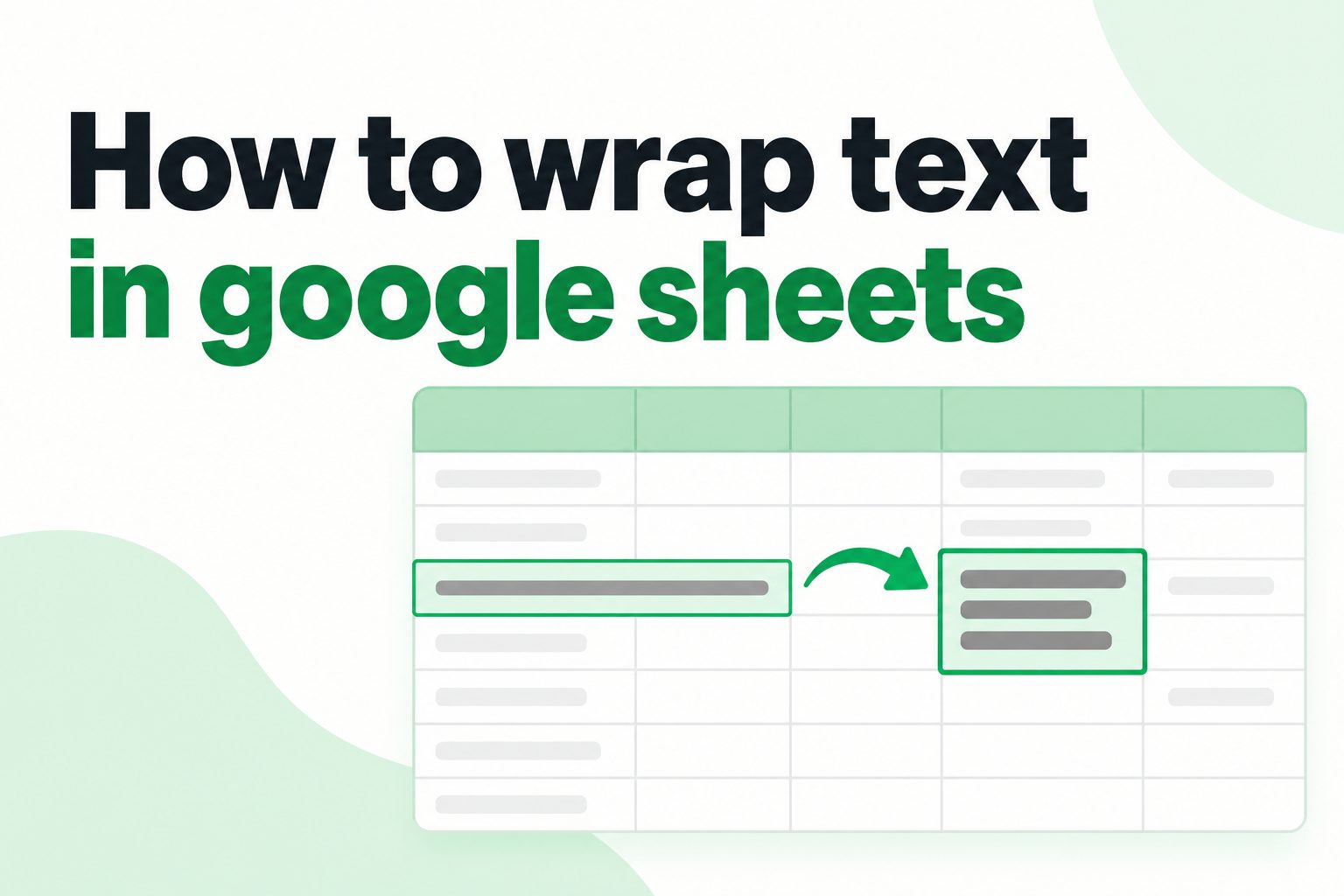
Learning how to wrap text in google sheets makes long entries easier to read without changing the information in your cells. Whether you manage a budget, project tracker, customer list, content calendar, or class schedule, wide text can quickly make a spreadsheet look messy. Text wrapping lets content appear on several lines inside the same cell, so you can keep columns narrow while still seeing complete notes, labels, and descriptions. It is a simple formatting feature, but it has a major effect on clarity and usability. This guide explains what text wrapping does, why it matters, how to apply it in different ways, and how to avoid common formatting problems. You will also find practical examples, expert tips, and answers to common questions so you can create cleaner, more useful Google Sheets files.
What Text Wrapping Does In Google Sheets
Text wrapping controls how Google Sheets displays content when it is wider than its column.
1. Keeps Long Text Inside One Cell
When you wrap text, Google Sheets displays a long sentence on multiple lines within the same cell. The cell’s content stays together, and the spreadsheet does not need an extremely wide column. This is useful for notes, comments, descriptions, and detailed task names.
2. Adjusts Row Height Automatically
After text is wrapped, the row usually expands vertically so every line can be seen. This automatic adjustment helps preserve the full content without forcing you to manually resize each row. You can still set a custom row height if your layout needs a consistent appearance.
3. Prevents Text From Overflowing
Without wrapping, text may spill into empty cells beside it or appear cut off when nearby cells contain data. Wrapping keeps the visible text within its own cell boundaries. That makes it easier to identify where one record ends and another begins.
4. Preserves The Original Cell Value
Wrapping changes presentation rather than the value stored in the cell. Formulas, filters, sorting, and references continue to work normally because the underlying text has not been split into separate cells. It is a formatting change, not a data-editing action.
5. Supports Better Spreadsheet Scanning
A sheet with narrow, organized columns is usually faster to scan than one with very wide columns. Wrapped text allows readers to compare rows while still seeing complete details. This is especially helpful when several columns contain labels, notes, owners, and status information.
6. Makes Shared Sheets Easier To Read
In collaborative spreadsheets, people often enter information with different writing styles and lengths. Text wrapping creates a more consistent display for everyone. Teammates can read full updates without repeatedly expanding columns, which reduces friction during reviews and handoffs.
Why Wrap Text In Google Sheets
Text wrapping is valuable because it balances readable content with a compact worksheet layout.
- Clearer records: Full descriptions remain visible instead of being hidden or cut off.
- Cleaner columns: You can avoid overly wide columns that require constant horizontal scrolling.
- Better printing: Wrapped content is easier to fit onto printed pages and exported reports.
- Improved collaboration: Reviewers can read notes quickly without changing the sheet layout.
- More consistent formatting: Similar cells can follow the same visual style across a workbook.
- Useful mobile viewing: Compact columns are generally easier to navigate on smaller screens.
Ways To Wrap Text In Google Sheets
Google Sheets offers several simple paths to the same result, depending on how you prefer to work.
1. Use The Toolbar Text Wrapping Button
Select one or more cells, then find the text wrapping control in the toolbar. Choose the wrap option from its menu. This is often the fastest approach when you are actively formatting a visible section of the sheet and want immediate visual confirmation.
2. Use The Format Menu
You can also select the target cells and use the Format menu to find text wrapping options. This method is useful when toolbar buttons are hidden because of a smaller screen or a customized layout. It provides the same formatting choices in a more traditional menu path.
3. Apply Wrapping To A Full Column
Click a column letter to select an entire column, then enable wrapping. This is helpful for fields such as descriptions, comments, addresses, or requirements where future entries are likely to be long. New content added in that column will follow the selected display style.
4. Apply Wrapping To Multiple Nonadjacent Cells
If only certain areas need wrapping, select those cells or ranges before applying the setting. This keeps short fields, numbers, and dates compact while making detailed fields readable. Selective formatting can make a complex spreadsheet feel more intentional and less crowded.
5. Use A Keyboard-Friendly Workflow
Keyboard users can select a range with the arrow keys and then use the menu commands to apply wrapping. Although the exact navigation differs by device and browser, the key idea is to format a selected range rather than editing each long cell individually.
6. Copy Formatting From A Wrapped Cell
Once one cell has the right wrapping and alignment, you can copy it and paste only its formatting onto other cells. This is useful when building templates or cleaning imported data. It helps preserve a consistent appearance without reapplying every setting manually.
Text Wrap Options In Google Sheets
The wrapping menu includes different display behaviors, and choosing the right one depends on the cell’s purpose.
1. Overflow For Open Adjacent Cells
Overflow allows text to continue into empty cells to the right. It can work well in simple sheets with plenty of unused space, but it becomes unreliable when neighboring cells later receive data. Use it only when a free-flowing layout will remain clear.
2. Wrap For Complete Visibility
Wrap places the content on additional lines within the cell and adjusts the row height as needed. It is usually the best choice for notes and descriptive content because readers can see everything while column widths remain controlled and easy to compare.
3. Clip For Compact Displays
Clip hides the part of the text that does not fit within the cell width. It can be useful for temporary dashboards or tightly structured tables where long content is not essential to view immediately. However, it can conceal important details if used carelessly.
4. Wrap For Text-Heavy Columns
Columns containing summaries, instructions, feedback, or task details benefit most from wrapping. The feature lets you set a reasonable width for the column while still displaying complete entries. It prevents a single detailed response from distorting the entire table.
5. Clip For Codes And Short Labels
Clip is often acceptable for reference codes, short identifiers, or labels that users already recognize. If the visible part still identifies the item clearly, clipping can keep a report compact. Avoid it when the hidden text changes the meaning of the entry.
6. Overflow For Temporary Draft Work
Overflow may be convenient while drafting or entering raw information before the sheet is finalized. Once the worksheet becomes shared or structured, wrapping is usually safer. It prevents later data entry from making existing text appear incomplete or confusing.
How To Wrap Text In Google Sheets Step By Step
Use these steps when you want to apply text wrapping to a cell, range, row, or column.
- Select The Target Cells: Click one cell, drag across a range, or select a row or column that contains the text you want to format.
- Open The Wrapping Controls: Use the text wrapping button in the toolbar or open the Format menu.
- Choose Wrap: Select the wrap option rather than overflow or clip so all content can appear within the cell.
- Check The Row Height: Confirm that the row expands enough to show the full text after the formatting change.
- Adjust Column Width: Make the column wide enough for comfortable reading without making the sheet unnecessarily broad.
- Review Adjacent Rows: Look for rows that became unusually tall and decide whether their content needs editing or a different layout.
- Apply Consistent Formatting: Repeat the setting for similar columns so the sheet remains easy to scan and maintain.
Common Text Wrapping Mistakes To Avoid
Text wrapping is simple, but a few habits can make a spreadsheet harder to use.
1. Wrapping Every Cell Without A Purpose
Applying wrap to an entire sheet can create tall rows and visual clutter, especially in columns containing short codes, dates, or numbers. Use wrapping where full text visibility matters. A selective approach keeps important descriptions readable while preserving a compact, structured table.
2. Leaving Columns Too Narrow
Very narrow columns can force each sentence onto many short lines, making rows excessively tall. Wrapping works best when the column width supports natural reading. Increase the width enough to reduce awkward breaks while still avoiding unnecessary horizontal scrolling across the sheet.
3. Ignoring Vertical Alignment
Tall wrapped rows can look uneven if text is aligned inconsistently. Top alignment is often easier to read in tables because entries begin on the same visual line. Review vertical alignment after wrapping, especially when some rows contain much more text than others.
4. Using Manual Line Breaks Too Often
Manual line breaks can be useful for deliberate formatting, but they should not replace normal wrapping. Too many inserted breaks make later editing difficult because the layout may no longer respond naturally to changes in column width. Use them only when line placement matters.
5. Forgetting To Check Printed Output
A sheet may look fine on screen but become difficult to read when printed or saved as a document. Wrapped content can change page height and page breaks. Review the print layout before sharing a report, particularly when notes or descriptions are part of the final output.
6. Treating Wrapped Text As Separate Data
Wrapped lines are still part of one cell, so they should not be mistaken for separate records. If each idea needs independent sorting, filtering, or calculation, place it in its own cell or column. Formatting should support data structure rather than hide a poor structure.
Best Practices For Wrapped Text In Google Sheets
These habits help wrapped cells remain useful as a spreadsheet grows and changes.
1. Wrap Descriptions Rather Than Numeric Fields
Use wrapping mainly for language-heavy columns, such as project details, customer feedback, product notes, and instructions. Numeric fields are easier to compare when they remain compact. This distinction creates a clear visual hierarchy and makes the sheet faster to review.
2. Set Reasonable Column Widths First
Choose a practical column width before deciding whether the wrapped result looks good. A sensible width prevents overly tall rows and helps readers scan line by line. Test the layout with the longest realistic entry, not only with a short sample value.
3. Keep Similar Columns Consistent
If one comments column uses wrap, related notes columns should usually use it too. Consistent formatting helps people predict where to look and how to read each area. It also makes new rows look correct automatically when team members add data later.
4. Combine Wrap With Top Alignment
Top alignment usually improves readability when rows have different heights. Readers can compare the beginning of each entry without searching vertically through blank space. This small adjustment is particularly helpful in project trackers, support logs, and editorial planning sheets.
5. Edit Overly Long Entries
Wrapping reveals when a cell contains more detail than a table can comfortably support. If an entry becomes a large block of text, consider shortening it, moving background information to another area, or using a separate notes sheet. Clear writing improves the spreadsheet as much as formatting does.
6. Review The Sheet At Different Screen Sizes
A layout that works on a large monitor may feel crowded on a laptop or mobile device. Check wrapped columns at the screen sizes used by your team. Small adjustments to width, alignment, and row height can make collaborative sheets much more accessible.
Practical Uses For Wrapped Text In Google Sheets
Wrapped text is especially helpful when a spreadsheet must hold detailed information without losing its table structure.
1. Project Task Descriptions
Project trackers often need a short task title plus a fuller explanation of scope, dependencies, or next actions. Wrapping lets the description remain visible in the task row. Team members can review work details without opening separate documents or widening the entire worksheet.
2. Customer Support Logs
Support teams can use wrapped cells for issue summaries, customer comments, and resolution notes. The format keeps each case on one row while preserving enough context for follow-up. This is useful when multiple people need to review a history of conversations quickly.
3. Content Calendars
Content planning sheets often include post ideas, draft notes, target audiences, and approval feedback. These entries can be longer than a standard title. Wrapping helps planners see the complete idea while keeping dates, owners, and publication status visible in nearby columns.
4. Inventory And Product Catalogs
Product sheets may contain names, feature summaries, handling notes, and supplier comments. Wrapped text makes descriptive fields manageable without making product codes or quantities harder to compare. It creates a catalog that is both informative and easy to filter or sort.
5. School And Training Trackers
Teachers, trainers, and students can wrap text for assignment instructions, feedback, learning goals, or attendance notes. The result is easier to read than a sheet with truncated comments. It also allows one tracker to contain both structured scores and meaningful written context.
6. Meeting Action Lists
Meeting notes often include action items that need an owner, deadline, and detailed follow-up instruction. Wrapped cells keep these details visible in the same row. This makes the list useful during later check-ins because readers can see the action without relying on memory.
Text Wrap Layout Tips For Better Sheets
Good wrapping works best when it supports the overall layout instead of solving every readability issue alone.
Use Clear Headers: Give wrapped-text columns specific headers such as Notes, Details, Summary, or Next Step. Readers can then recognize why those rows may be taller than nearby data.
Limit Dense Columns: A table with several long-text columns can become difficult to scan. Keep detailed writing in one or two focused columns whenever possible.
Separate Major Ideas: If one cell contains unrelated topics, split them into separate columns or rows. Wrapping improves display, but it cannot make mixed information easy to filter.
Use Short Sentences: Concise cell content produces cleaner wrapped rows. Lead with the key action or result, then add only the details readers need.
Check Row Consistency: Rows with unusually large blocks of text can distract from the rest of the sheet. Edit or relocate extra detail when a row becomes difficult to scan.
Frequently Asked Questions
1. How Do I Wrap Text In Google Sheets Quickly
Select the cell or range, open the text wrapping controls in the toolbar or Format menu, and choose Wrap. Google Sheets will display the content on multiple lines inside the same cell. If needed, adjust the column width afterward for a more comfortable reading layout.
2. Why Is My Wrapped Text Not Fully Visible
The row may have a fixed height that is too small, or the cell may be using clip instead of wrap. Check the wrapping setting first, then review the row height. Also make sure merged cells or hidden rows are not preventing the full content from appearing.
3. Does Text Wrapping Change Formulas Or Data
No, text wrapping only changes how content is displayed. The value in the cell remains the same, and formulas, sorting, filtering, and references continue to use the original data. This makes wrapping a safe formatting option for most working spreadsheets.
4. Can I Wrap Text In An Entire Column
Yes. Click the letter at the top of the column to select it, then choose Wrap from the text wrapping options. This is useful for columns that consistently contain long descriptions, notes, comments, or other content that should remain readable within a controlled width.
5. What Is The Difference Between Wrap And Clip
Wrap shows all text by placing it on additional lines within the cell, while clip hides text that does not fit inside the selected column width. Wrap is best when the full message matters. Clip is better only when a compact display is more important than immediate visibility.
6. Should I Use Manual Line Breaks With Wrapped Text
You can use manual line breaks when you need a specific separation, such as placing a label and a note on different lines. However, ordinary wrapping is usually enough for long text. Too many manual breaks can make cells harder to edit and less flexible when column widths change.
Conclusion
Knowing how to wrap text in google sheets helps you present long content without sacrificing a clean spreadsheet layout. It keeps notes, descriptions, instructions, and updates visible inside their own cells while allowing columns to stay practical and easy to scan.
Use wrapping selectively, set sensible column widths, and review row height and alignment as you format your sheet. With these small choices, even detailed spreadsheets can remain organized, readable, and easy for others to use.